0%
ExploreXR Plugin Documentation

Documentation

This guide explains how to install, configure, license, and operate ExploreXR in a production WordPress environment. It covers the core platform, add-on activation, model management, and deployment workflow.

Quick Start

1. Install The Core Platform

From the WordPress admin:

  1. Go to Plugins -> Add New -> Upload Plugin
  2. Upload the ExploreXR package
  3. Install and activate
  4. Confirm the ExploreXR menu appears in the admin

If you are starting with the public core package, install it from the WordPress plugin directory using the same standard plugin workflow.

2. Upload Your First Model

  1. Go to ExploreXR -> Models
  2. Select Add New Model
  3. Upload your model asset
  4. Add alt text
  5. Optionally upload a poster image
  6. Save the model and note its ID

Supported model formats:

  • .glb
  • .gltf
  • .usdz

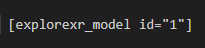
3. Embed The Model

Use the shortcode:

Replace 1 with the actual model ID.

4. Expand With Add-Ons

If your plan includes add-ons:

  1. Install the required add-on plugin
  2. Activate it
  3. Confirm the license allows the add-on count
  4. Configure the add-on globally or per model

Model Management

The Model Library

ExploreXR stores models in a dedicated management workflow so content owners can maintain model assets with clearer structure than a generic upload-only process.

Typical model fields

  • model file
  • poster image
  • alt text
  • viewer size settings
  • interaction defaults
  • add-on-specific configuration

Recommended publishing practice

  • use .glb for most standard deployments
  • keep file sizes optimized before upload
  • provide poster images for heavier assets
  • use consistent naming so teams can find assets quickly later

Embedding Models

Shortcode Embedding

Use the primary shortcode:

Page Builder Support

ExploreXR supports common WordPress content workflows:

  • Gutenberg
  • Elementor
  • Divi
  • Beaver Builder

Multiple Models On One Page

Multiple model viewers can be used on a single page when required. For larger assets or more complex layouts, review loading strategy settings to keep page behavior predictable.

Loading Strategy

Large models should be planned deliberately.

ExploreXR supports three primary loading approaches:

StrategyUse Case
DirectFor lighter assets that should appear immediately
PosterFor larger assets where user-triggered loading improves the experience
LazyFor below-the-fold placements where deferred loading improves page performance

Choose the strategy based on model weight, page context, and expected user flow.

Add-On Setup

Installation

Each add-on is installed as its own WordPress plugin.

  1. Upload the add-on package
  2. Activate the add-on
  3. Confirm the core platform is active
  4. Confirm the license still has available add-on capacity

Global And Per-Model Configuration

Most add-ons support two levels of control:

  • Global settings for platform-wide defaults
  • Per-model settings for asset-specific behavior

This allows teams to keep a stable default configuration while still tailoring important models where needed.

Common add-on examples

  • AR for mobile placement workflows
  • Annotations for guided model explanation
  • Material Variants for configurable products
  • Animations for motion-based explanation
  • Expert Camera Mode for controlled presentation
  • WooCommerce Integration for product pages

Licensing

Plan Structure

ExploreXR uses three paid tiers:

  • Pro – 2 add-ons
  • Plus – 4 add-ons
  • Ultra – all add-ons

Each tier is available in three license categories:

  • Personal – 1 website
  • Business – 5 websites
  • Agency – 25 websites

All paid plans include unlimited 3D models.

Activating A License

  1. Open ExploreXR -> License
  2. Enter the license key
  3. Activate the key
  4. Confirm the plan tier and website allocation

Grace Period

If a paid license expires, ExploreXR provides a 90-day grace period before premium functionality is deactivated.

This is designed to reduce disruption on active websites and give teams time to renew properly.

Settings

Core settings typically include

  • viewer behavior defaults
  • loading strategy
  • large-model thresholds
  • interaction controls
  • page-builder integration points

Operational best practice

Set sensible global defaults first, then override only the models that require special handling. This keeps maintenance cleaner over time.

Operational Notes

Performance

Optimize heavy assets before upload, use poster or lazy loading where appropriate, and avoid treating large 3D files like standard images.

AR Readiness

Confirm HTTPS, compatible devices, and required asset formats before evaluating AR workflows in production.

Diagnostics

Use the Debug Toolkit whenever deployment behavior is unclear. It is the fastest way to confirm environment conditions and support-relevant details.

Updates

Before updating a live site:

  1. Back up the site
  2. Review the release notes
  3. Test in staging when possible

This is standard production hygiene and especially important on websites where 3D content is part of a commercial workflow.